Implementation Strategies
Tips, tricks, and real-world strategies from our implementation — not just theory.
Provide a Way to Reset the Conversation
Sometimes the agent gets stuck in a conversation loop where it stops calling tools or gives the same response every single time. In such situations, the current conversation is likely corrupted and the only way to start over is to create a new fresh conversation using the OpenAI API (/conversations).
Regarding the UI, this can be triggered by the "New Chat" button in Copilot. Unfortunately, there is no such mechanism in Teams — so we implemented a /reset command and added that action in the debug card as well.
Implement Conversations as Bot Dialogs
We use bot dialogs to handle conversation loops gracefully. For instance, what happens if the user presses "Continue" without being logged in? The dialog should restart. The same approach applies for tool approval — if the user rejects an approval, the dialog restarts and the agent picks another tool or gives a different response.
Speed Up Your Development with Webpack
Azure App Service deployment can be done by simply uploading a ZIP package containing the files for your application. However, for Node.js applications, deployment expects the entire node_modules folder to be uploaded for dependency resolution. This folder can be quite large and may contain many unnecessary files. Including it every time — regardless of the update size — can lead to significant deployment delays:

To avoid this, we use Webpack to bundle only the necessary code and dependencies, significantly speeding up the deployment process. It produces static "standalone" files that already include the specific parts of their dependencies they need — and only those parts. This process is called tree-shaking. After bundling, the application no longer needs the node_modules folder.
We copy the web.config and package.json files to the dist folder as they are required by Azure App Service to run the Node.js application (the server will automatically run the npm run start command).
Bring Your Own Disclaimer
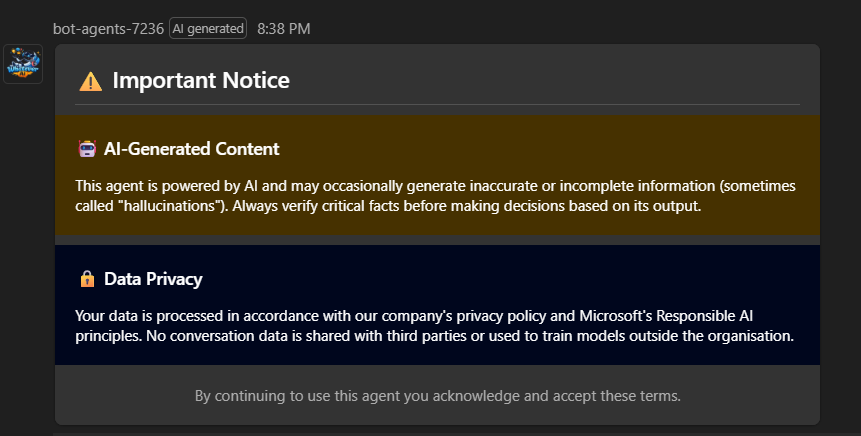
Disclaimer about AI practices is a common business requirement. However, default disclaimer capabilities in Teams and Copilot are quite limited. In our solution, we implemented a dynamic disclaimer mechanism that can be triggered by the agent for every new conversation, displaying an Adaptive Card with the relevant information. This allows for a more flexible and rich disclaimer experience — for instance, adding an "I agree" call to action.
Display Forms as Adaptive Cards Based on Agent Output
Instead of intercepting the MCP tool call selection from the agent's streaming response and trying to update parameters from form data, we use specific markers in the agent prompt to trigger the display of an Adaptive Card form in the UI. This way, we intercept a specific marker in the agent response and display the appropriate card.
Here is an example of the it-agent system prompt using a marker to trigger a ticket form when the user asks to raise a ticket:
...
### Step 5: Ticket Submission

This step is triggered when:
- The user explicitly asks to raise a ticket, report an issue, or submit a request (detected in Step 1), OR
- The user accepts the follow-up offer to raise a ticket after a "NOT ANSWERABLE" outcome in Step 4.

When triggered:

1. Respond gracefully by acknowledging their request. For example:
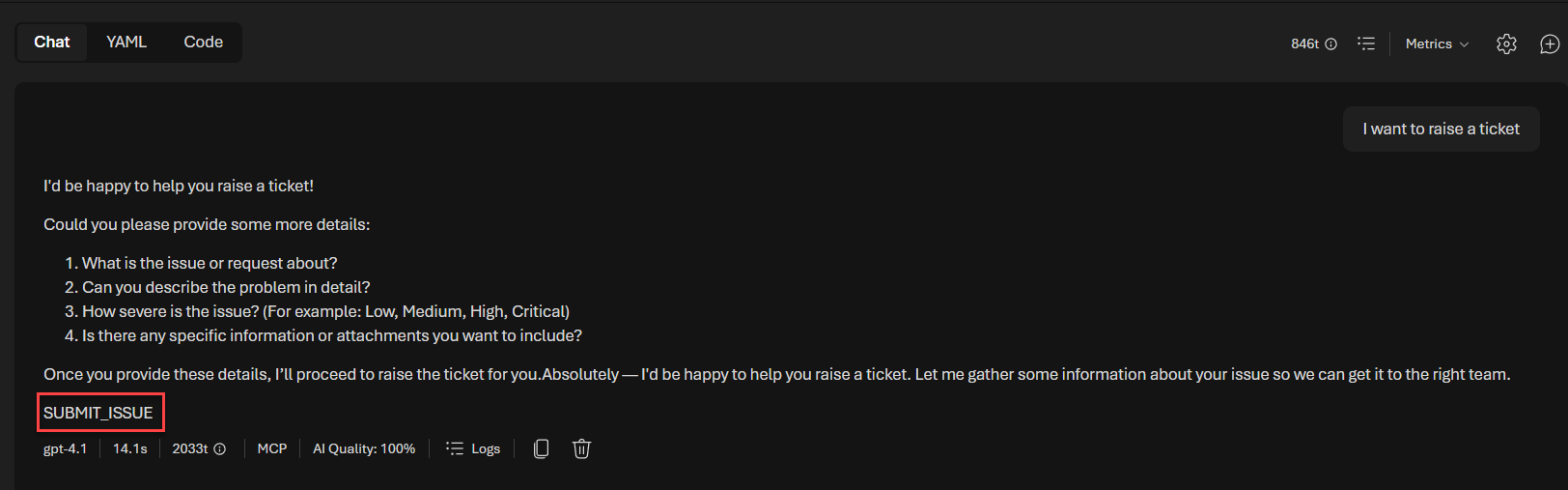
   > Absolutely — I'd be happy to help you raise a ticket. Let me gather some information about your issue so we can get it to the right team.
2. **Do NOT call any tool at this step.** After your acknowledgment, output the following string **exactly** on its own line as the very last content of your response, with no additional text, formatting, or whitespace around it:

``
SUBMIT_ISSUE
``

...
If tested directly in the Foundry playground, the output looks like this:
When the agent outputs the SUBMIT_ISSUE marker, we intercept it in the streaming response and display the appropriate Adaptive Card form:
if (streamResult.ticketForm) {
    console.log('[AGENT] SUBMIT_ISSUE detected, sending ticket form card');

    await AdaptiveCardHelper.sendTicketFormCard(context, {
        conversationId: streamResult.ticketForm.conversationId,
        inputQuery: streamResult.ticketForm.inputQuery
    });

    return Dialog.EndOfTurn;
}
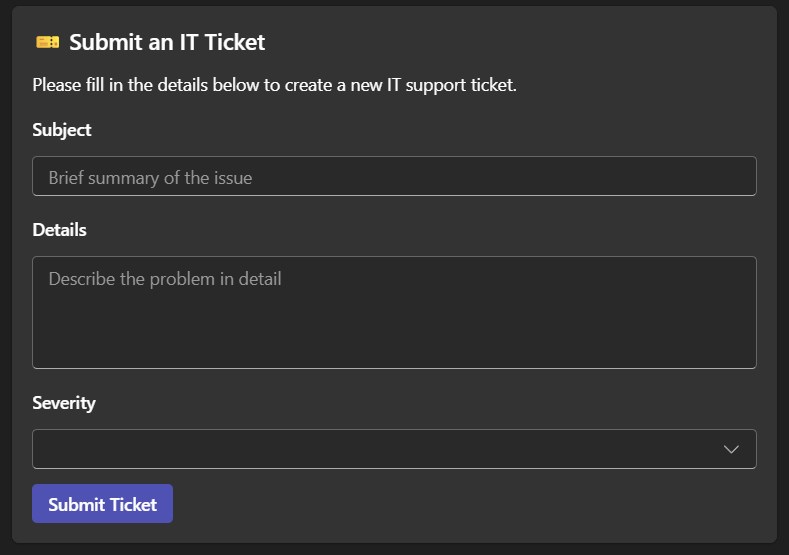
Then, when the form is completed by the user, we call the agent with a special user message containing specific instructions so the agent can call the tool with the correct values:
...
} else if (isTicketFormResume) {

    const ticketData = resumeData as TicketFormCardData;

    inputQuery = [
        `[SYSTEM] The user has filled the IT ticket form with the following information:`,
        `- Subject: ${ticketData.subject}`,
        `- Details: ${ticketData.details}`,
        `- Severity: ${ticketData.severity}`,
        ``,
        `**YOU MUST** Call the submit_ticket tool now with exactly these values. Do not modify them.`
    ].join('\n');

    ...

} else {
...
Simplify Your Development Flow with MCP and Dev Tunnels
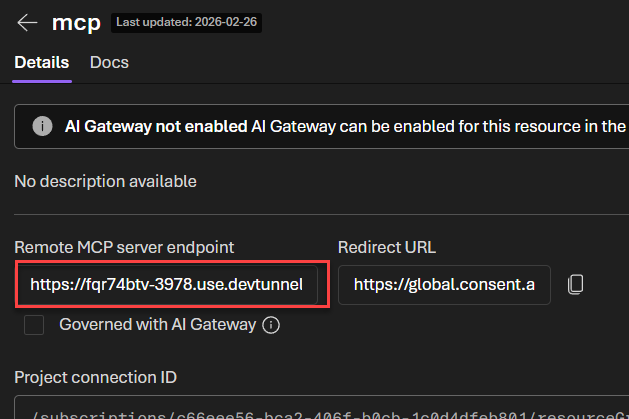
Instead of creating a standalone MCP server, we integrated the MCP server code directly into our agent application as a dedicated route (i.e., /api/mcp). This way, we can leverage the existing Microsoft 365 Agents Toolkit dev tunnels feature to expose our local environment to the internet and test our agents seamlessly — without having to spin up multiple applications. This also provides a more integrated debugging experience with breakpoints in a single place.
Understand the Limitations of Workflow Agents
Workflow agents use the OpenAI Responses API under the hood. From an API perspective, they don't differ from a regular agent, but there are some limitations and best practices to be aware of:
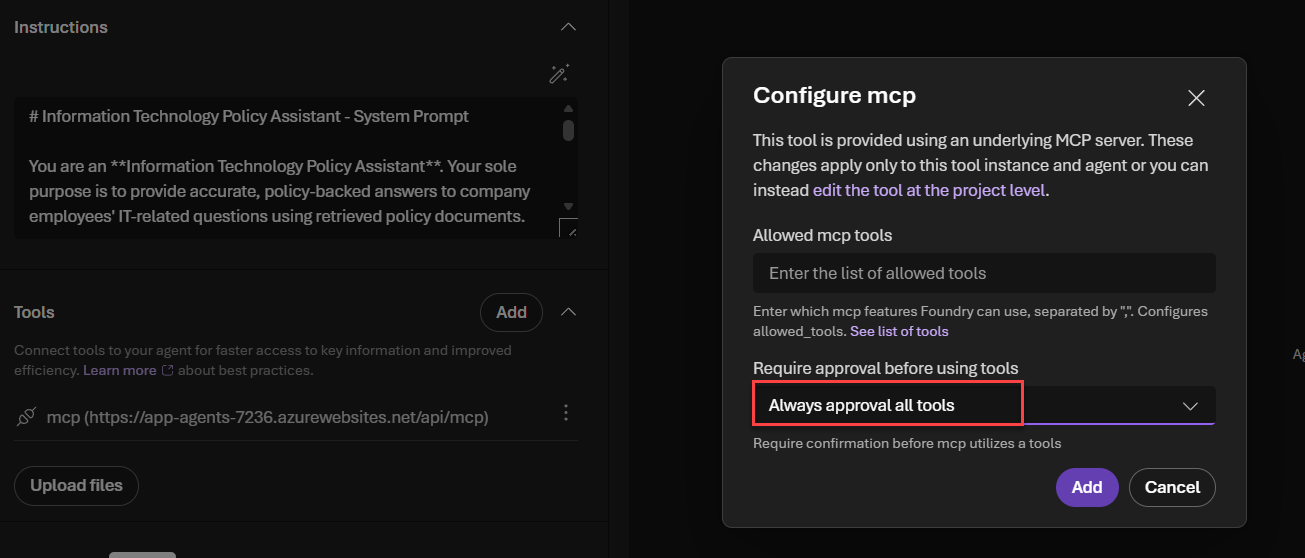
If an internal agent requires tool approval, the workflow agent will include the approval message in its output. However, there is no way to reply back with the approval for a specific internal agent. This means that any tools used by your agents must be always approved by default (which is the case in our solution).
The workflow agent sends every output from internal agents automatically. To make it work with the streaming experience, we implemented an action-skipping mechanism to only display output from specific nodes in the workflow — for instance, ignoring the classification output from the router-agent as it is not useful for the user.
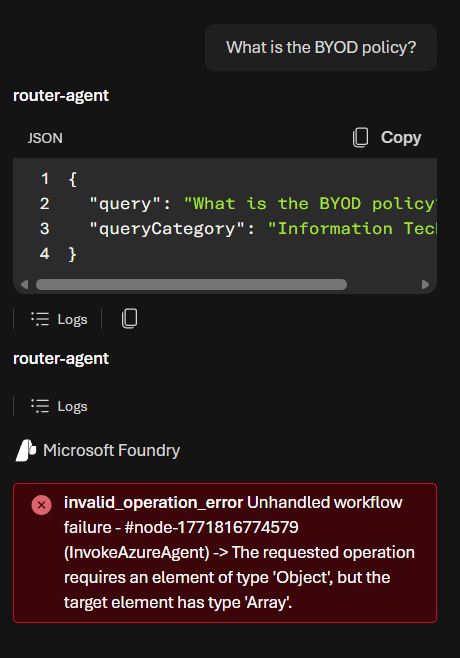
allowed_tools property type mismatchThere is currently a bug in workflow agents when the allowed_tools property is set on an agent. The Foundry workflow runtime expects this property to be an object, but by default it is set as an array when updating MCP tools from the Foundry portal — resulting in an error when calling the workflow agent. To avoid this, agent deployment is done by script, omitting that property.